> For the complete documentation index, see [llms.txt](https://spsvn.gitbook.io/product-docs-1/llms.txt). Markdown versions of documentation pages are available by appending `.md` to page URLs; this page is available as [Markdown](https://spsvn.gitbook.io/product-docs-1/huong-dan-cai-dat-va-cau-hinh-quan-tri-vien/cau-hinh-he-thong/thiet-lap-co-cau-to-chuc.md).

# Thiết lập Cơ cấu tổ chức

**Cách 1: Nhập thông tin trực tiếp trên phần mềm:**&#x20;

1. Từ Menu Setting chọn Cơ cấu tổ chức:

<figure><img src="https://2462019127-files.gitbook.io/~/files/v0/b/gitbook-x-prod.appspot.com/o/spaces%2F71lCQurVmuzyJhE2SjGT%2Fuploads%2Fee1VEndOUlenDCSie7TH%2Fimage.png?alt=media&amp;token=c2eed0aa-0b16-4cba-ac18-b3a790a2f318" alt=""><figcaption></figcaption></figure>

2. Chọn + Thêm mới để thêm mới 1 phòng ban.&#x20;
3. Nhập thông tin các phòng ban theo hình.&#x20;

   1. Tiêu đề: Tên phòng ban.&#x20;
   2. Code: Mã phòng ban - Lưu ý: Mã là giá trị duy nhất, viết liền không dấu&#x20;
   3. Phòng ban cấp cha: bộ phận cấp trên của phòng ban đang tạo (nếu có)&#x20;
   4. WorkGroup: mã của workgroup mà phòng ban đó trực thuộc&#x20;
   5. Quản lý phòng ban – có thể chọn sau.&#x20;
   6. Phó quản lý phòng ban – có thể chọn sau.&#x20;

   <figure><img src="https://2462019127-files.gitbook.io/~/files/v0/b/gitbook-x-prod.appspot.com/o/spaces%2F71lCQurVmuzyJhE2SjGT%2Fuploads%2FQ4c71nGiTRf3e3ZYAZFm%2Fimage.png?alt=media&amp;token=cf759afa-4497-4df1-a175-baf7801eecc3" alt=""><figcaption></figcaption></figure>
4. Chọn \<Tạo>: để lưu các thông tin đã nhập&#x20;

&#x20;

**Cách 2: Sử dụng tính năng Import:**

1. Từ menu Setting, chọn Cơ Cấu tổ chức
2. Chọn Import

<figure><img src="https://2462019127-files.gitbook.io/~/files/v0/b/gitbook-x-prod.appspot.com/o/spaces%2F71lCQurVmuzyJhE2SjGT%2Fuploads%2F9ULrvfVmxHEJeLXRZ5c3%2Fimage.png?alt=media&amp;token=b3a78b2b-bb79-4c09-8c23-1fe107d7014e" alt=""><figcaption></figcaption></figure>

3. Từ màn hình "Tải lên danh sách Cơ cấu tổ chức", chọn "Tải xuống biểu mẫu"
4. Hoàn thành thông tin theo file mẫu
5. Lựa chọn "Tải lên biểu mẫu", chọn file đã nhập đủ thông tin

<figure><img src="https://2462019127-files.gitbook.io/~/files/v0/b/gitbook-x-prod.appspot.com/o/spaces%2F71lCQurVmuzyJhE2SjGT%2Fuploads%2F1tnBY9zjjTEQ6OyDvei7%2Fimage.png?alt=media&amp;token=5f1636e5-8733-42f4-a15b-bff38a43f0bf" alt=""><figcaption></figcaption></figure>

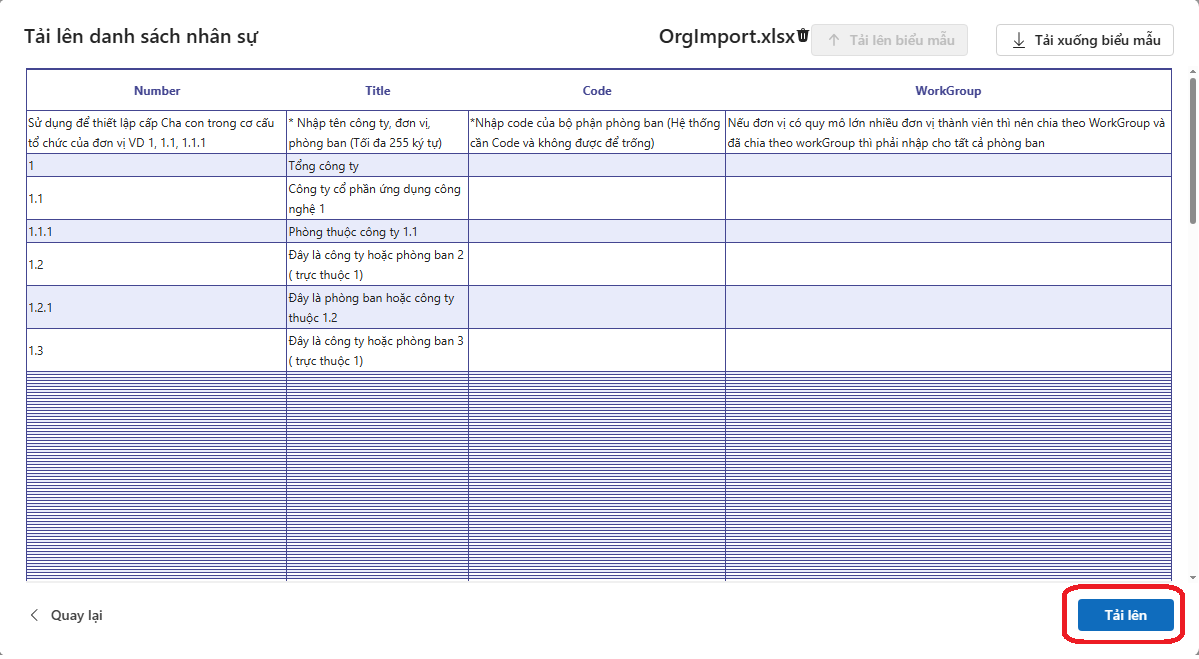
5. Kiểm tra lại thông tin sau đó bấm "Tải lên"

<figure><img src="https://2462019127-files.gitbook.io/~/files/v0/b/gitbook-x-prod.appspot.com/o/spaces%2F71lCQurVmuzyJhE2SjGT%2Fuploads%2FLJXNmUjU2yJ6jEA0t0Kj%2Fimage.png?alt=media&amp;token=003b96bb-9986-45db-9e76-9f10f6aa6daa" alt=""><figcaption></figcaption></figure>

*<mark style="color:red;">**Chú ý:**</mark>*&#x20;

* <mark style="color:red;">Nhập đơn vị cấp cha trước rồi mới nhập đơn vị cấp con</mark>&#x20;
* <mark style="color:red;">Nhập cơ cấu phòng ban xong -> tạo User Profile -> cập nhật manager cho các phòng ban</mark>&#x20;
* <mark style="color:red;">Khi nhập nhiều phòng ban sử dụng Import, không chỉnh sửa trực tiếp trên Sharepoint</mark>&#x20;